How To: Recurring Tasks with Timelines instead of Due Dates in Monday.com
- Sav Blankenship
- Sep 21
- 3 min read
Sav Blankenship
9/21/25
Purpose
If you need to create recurring tasks in Monday.com for your team but you're looking for a general timeline instead of a singular due date this guide will walk you through how to do so. These are ideal for tasks that need to be done every week, but the specific "when" doesn't matter. This offers your team flexibility and autonomy over their schedules without sacrificing viability or automation.
Important Notes
The start of the timeline will be the date that the automation is set to run.
If the automation is set to run on Monday, the timeline start date will be Monday
Duration is simply the number of days which the timeline will span. Monday through Friday has a duration of 5 days. Monday through Thursday has a duration of 4 days. And so on.
Monday.com does not automatically ignore weekend days within timelines. If your automation generates on a weekend day then the start of the timeline will be that weekend day.
I recommend
setting automated tasks to generate on Mondays at midnight (0:00) for this reason.
1. Navigate to the board the tasks will generate into and add a new "Numbers" column. Then rename that Numbers column to "Duration".

On your existing "Timeline" column click on the three dots next to the column title then hover over "Settings" and finally select "Connect with a duration"

In the next menu ensure that the "Duration" column you have just created is selected in the drop down, and then click "Connect Columns"
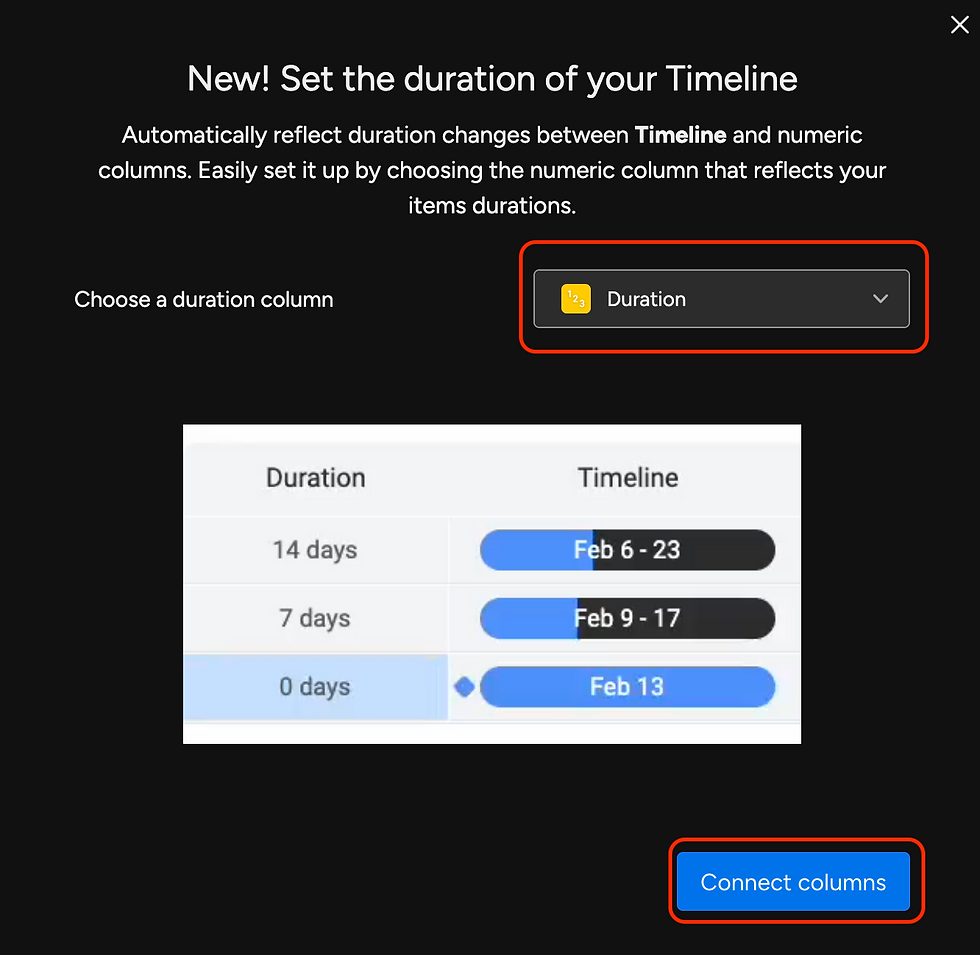
Now you will see that the Timeline and Duration columns are visually connected. At the top of the page select "Automate".
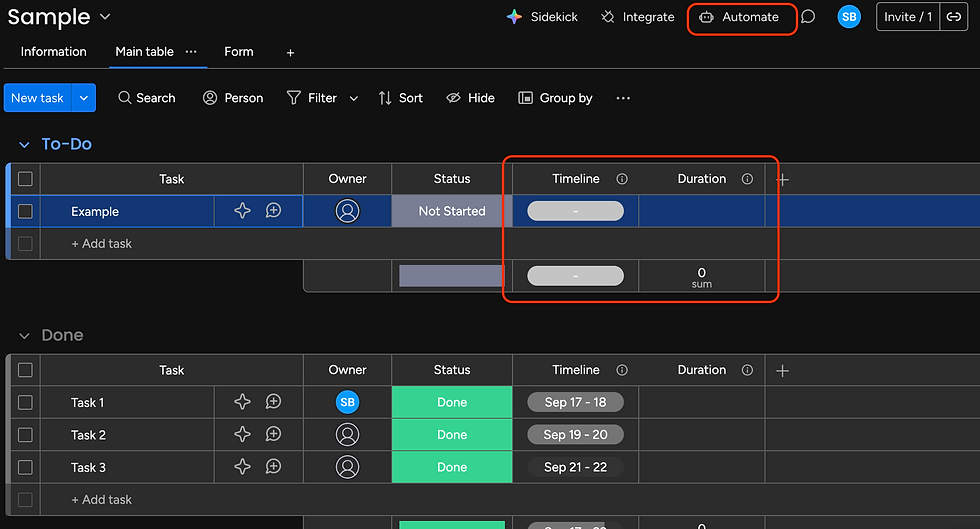
Click "Create Automation"

Set the trigger to "Every Time Period" and the action to "Create an Item"

Click on the grey "Every Time Period" text and select the frequency, date, and time at which you want the task to be generated. In the example case, I will set the task to generate every week at midnight on Monday.

Important Note** The task timeline will start from the day it is generated. It does not automatically discount weekends. If you set the automation to run on the weekend, the timeline will start on the weekend. Meaning, if you set the automation to generate a task on Sunday night with a duration of 3 the resulting timeline on the generated task will be from Sunday to Tuesday. To avoid this, set the automation to run at 0:00 (midnight) on Mondays.
Click on the grey "an item" text and enter your information (task Name, person it will be assigned to, or status". Leave the timeline column empty. Enter the number of days the timeline will span from the date of generation in the "Duration" section.
Example: If the automation is set to generate Monday and I want the timeline to span from Monday to Friday I would enter 5 into the duration section for 5 days.
Example: If the automation is set to generate on Wednesday and I want the timeline to span from Wednesday to Thursday I would enter 2 into the duration section for 2 days.
Example: If the automation is set to generate on MONDAY but the timeline needs to span Wednesday to Friday I would return to step 7, un-select Monday as the generation date and then select Wednesday instead. Then I would enter 3 into the duration section for 3 days.
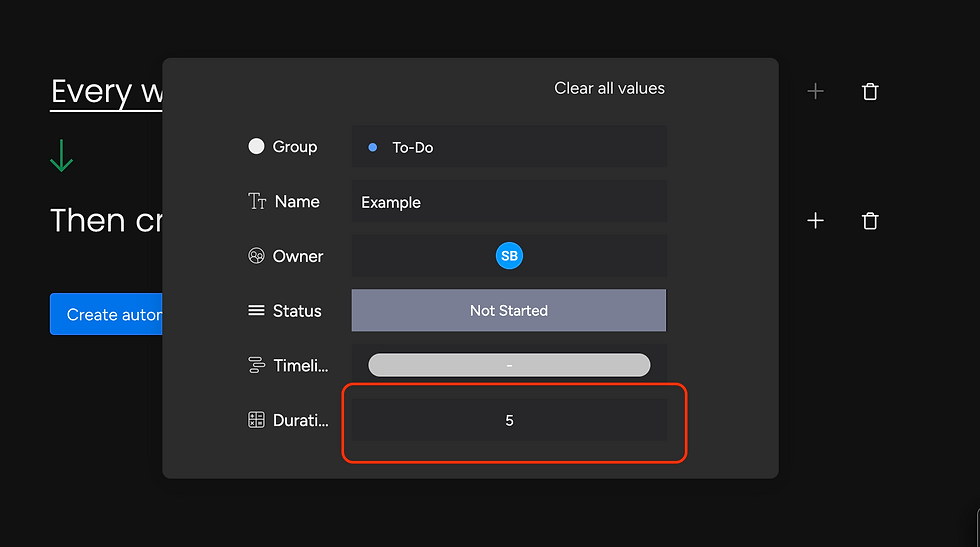
Click "Create Automation"

In the automation description write a brief but accurate description of what your automation does to keep things tidy and clear for the future.

Want specific help implementing this? Book some time with me so we can discuss your Monday.com implementation needs.




Comments